
Jinghpaw Tone Font
Tone-marked Kachin font + keyboard · Last updated: 19 November 2026
"Jinghpaw Tone" ngu ai font gaw Kachin (Jinghpaw) laika hpe hti ai shaloi (sh.) typing galaw ai shaloi tinang tsun mayu ai hpe tup hkrak tsun shaga, hti hkaja ai shaloi jai lang na "ga nyem", "ga tsaw" tonal variation (pitch) a matu masat kumla ni hpe bang da ai font langai rai nga ai. Ndai masa gaw, jawng hta sara ni sharin ya ai nsen masa hpe tatut jai lang lu na matu yaw shada ai nna galaw da ai re. Marai langai hkrai a myit la ai hku nna galaw da ai n rai, Jinghpaw Wunpawng wuhpung wuhpawng ting a matu sut rai rai nga ai.
Jinghpaw Tone is a font for typing and reading Jinghpaw (Kachin) with tone marks. It puts into practice the tone system our teachers already taught in school — not one person's invention, but for all Kachin people.
Jinghpaw Tone ဆိုတာ ကချင်စာ (Jinghpaw) ကို အသံအနိမ့်အမြင့် သင်္ကေတတွေနဲ့ ရိုက်နိုင်၊ ဖတ်နိုင်အောင် လုပ်ထားတဲ့ ဖောင့်ပါ။ ဒီစနစ်က ဆရာတွေ ကျောင်းမှာ သင်ပေးခဲ့တဲ့ အသံစနစ်ကို လက်တွေ့အသုံးချနိုင်အောင် လုပ်ထားတာပါ — တစ်ဦးတစ်ယောက်ရဲ့ တီထွင်မှုမဟုတ်ဘဲ ကချင်လူမျိုး အားလုံးအတွက် ဖြစ်ပါတယ်။
Jìnghpàw làika shărín hkàm lá na mătu.
The sentence above is shown in the Jinghpaw Tone font. Gălaw — the breve (˘) sits on the first a only.
အပေါ်က စာကြောင်းကို Jinghpaw Tone ဖောင့်နဲ့ ပြထားပါတယ်။ Gălaw — breve (˘) က ပထမ a ပေါ်မှာပဲ တင်ပါတယ်။
Download · ဒေါင်းလုဒ်ဆွဲရန်
How to use · သုံးပုံသုံးနည်း
Windows
- Install the font: right-click JinghpawTone-Regular.ttf → Install.
- Install Keyman (free) from keyman.com, then open jinghpaw_tone.kmp — Keyman installs the keyboard.
- Switch Keyman to 'jinghpaw tone' before typing — otherwise / and \ type literally.
- Type, then in Word select the text and set the font to "Jinghpaw Tone".
- ဖောင့်ကို install လုပ်ပါ — JinghpawTone-Regular.ttf ကို right-click → Install။
- Keyman (အခမဲ့) ကို keyman.com ကနေ install လုပ်ပြီး jinghpaw_tone.kmp ဖိုင်ကို ဖွင့်ပါ — Keyman က ကီးဘုတ်ကို install လုပ်ပေးပါလိမ့်မယ်။
- မရိုက်ခင် Keyman ကို 'jinghpaw tone' လို့ ပြောင်းပါ — မပြောင်းရင် / နဲ့ \ က စာလုံးအတိုင်း ထွက်ပါလိမ့်မယ်။
- ရိုက်ပြီးရင် Word မှာ စာကို ရွေးပြီး font ကို "Jinghpaw Tone" လို့ ထားပါ။
iPhone
- Install the font profile: open JinghpawTone.mobileconfig in Safari → Allow → Settings → General → VPN & Device Management → Downloaded Profile → Jinghpaw Tone Font → Install. "Not Signed" is normal.
- Install the Keyman app, then install the .kmp keyboard inside it.
- Settings → General → Keyboard → Keyboards → Add New Keyboard → Keyman (under "K") — and turn Allow Full Access ON.
- While typing, tap the globe key (🌐) to switch to the Jinghpaw Tone keyboard.
- ဖောင့်ပရိုဖိုင်ကို install လုပ်ပါ — JinghpawTone.mobileconfig ကို Safari မှာ ဖွင့် → Allow → Settings → General → VPN & Device Management → Downloaded Profile → Jinghpaw Tone Font → Install ("Not Signed" ဆိုတာ ပုံမှန်ပါ)။
- Keyman app ကို install လုပ်ပြီး .kmp ကီးဘုတ်ကို အထဲမှာ install လုပ်ပါ။
- Settings → General → Keyboard → Keyboards → Add New Keyboard → Keyman (K အောက်မှာ) ကို ထည့်ပြီး Allow Full Access ကို ON လုပ်ပါ။
- ရိုက်နေရင်း globe ခလုတ် (🌐) ကို နှိပ်ပြီး Jinghpaw Tone ကီးဘုတ်ကို ပြောင်းပါ။
Typing the tones · အသံရိုက်နည်း
Type the vowel FIRST, then the tone key: / = high tone (á), \ = low tone (à), ^ (Shift+6) = slar, the twist (â). Middle tone has NO mark. AltGr+A (right Alt + A) types ă — the second-a breve, e.g. galaw = Gălaw (breve on the first a only).
သရအရင် ရိုက်ပါ၊ ပြီးမှ အသံခလုတ်ကို ရိုက်ပါ — / = အသံမြင့် (á), \ = အသံနိမ့် (à), ^ (Shift+6) = slar / လိမ် (â)။ အလယ်အသံ (middle tone) မှာ သင်္ကေတ မရှိပါ။ AltGr+A (ညာ Alt + A) က ă ကို ရိုက်ပါတယ် — ဒုတိယ a ရဲ့ breve သင်္ကေတ၊ ဥပမာ galaw = Gălaw (breve က ပထမ a ပေါ်မှာပဲ)။
Keyboard layout · ကီးဘုတ်ပုံစံ
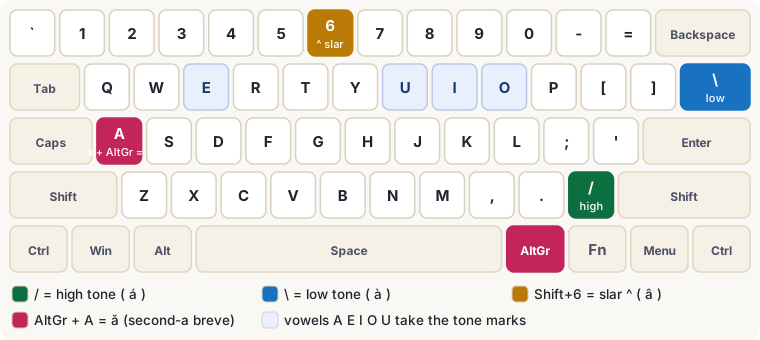
- / = high tone, \ = low tone, ^ = slar. Marks go on vowels only.
- Two-letter vowels (AW, OI, AI, AU) are marked on the FIRST letter only.
- Middle tone has no mark.
- Second-a is ă (breve), e.g. galaw = Gălaw (breve on the first a only).
- iPhone shift: single-tap = one capital, then it goes back to lowercase; double-tap = caps lock.
- The marks are the "ai" style — the shape of the Burmese 'ဲ'.
- / = အသံမြင့်, \ = အသံနိမ့်, ^ = slar။ သင်္ကေတတွေက သရပေါ်မှာပဲ တင်ပါတယ်။
- သရနှစ်လုံး (AW, OI, AI, AU) ဆိုရင် ပထမစာလုံးပေါ်မှာပဲ သင်္ကေတတင်ပါတယ်။
- အလယ်အသံမှာ သင်္ကေတ မရှိပါ။
- ဒုတိယ a က ă (breve) ပါ၊ ဥပမာ galaw = Gălaw (breve က ပထမ a ပေါ်မှာပဲ)။
- iPhone Shift: တစ်ချက်နှိပ်ရင် စာလုံးအကြီးတစ်လုံး၊ ပြီးရင် အလိုအလျောက် အသေးပြန်ဖြစ်ပါတယ်။ နှစ်ချက်နှိပ်ရင် caps lock ပါ။
- သင်္ကေတတွေက "ai" ပုံစံပါ — မြန်မာ 'ဲ' ပုံသဏ္ဌာန်။
License
Font: SIL Open Font License (OFL) — free to use and share. Keyboard: MIT license.
ဖောင့်: SIL Open Font License (OFL) — အခမဲ့ သုံးနိုင်၊ မျှဝေနိုင်ပါတယ်။ ကီးဘုတ်: MIT license။
Built by Padang Zau, putting his teachers' teaching into practice, for all Kachin people.
ဆရာတွေ သင်ပေးခဲ့တာကို လက်တွေ့အသုံးချနိုင်အောင် Padang Zau က လုပ်ထားတာပါ — ကချင်လူမျိုး အားလုံးအတွက်။
Questions? Contact us at padangzau01@gmail.com.